The process can be a bit confusing so here is a quick walkthrough on how to register for courses on WYSTARS:
If you do not have an account you will need one to register for any courses. If you have already registered, skip down to the next marker.
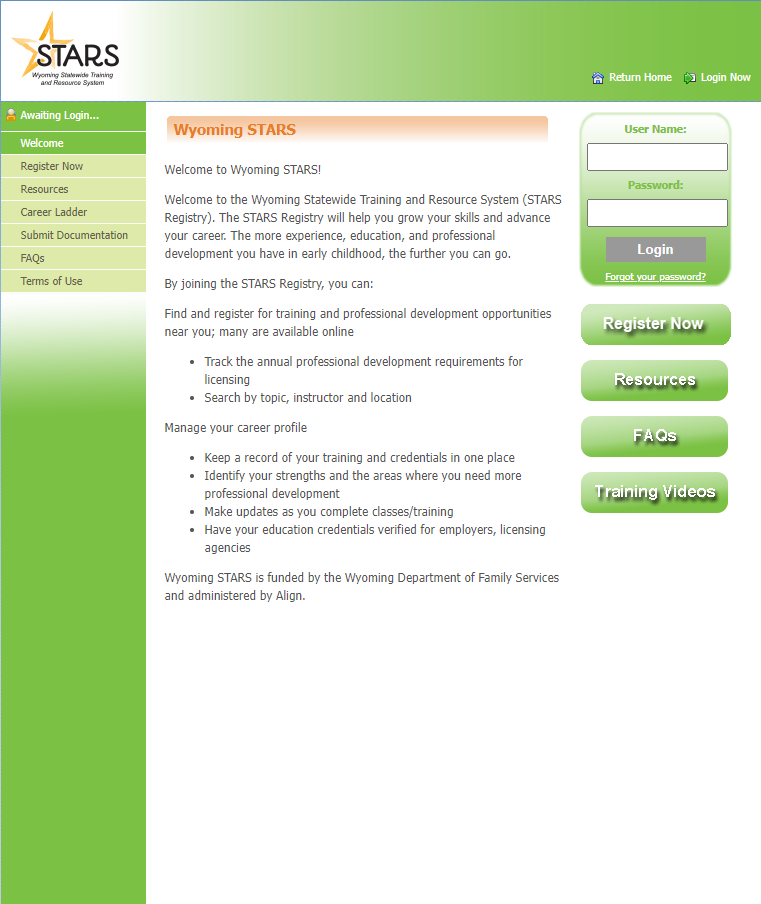
1) To register, you first will need to click the “Register Now” button and fill out the user registration form. It is highly recommended that you write down your password as people often forget theirs.
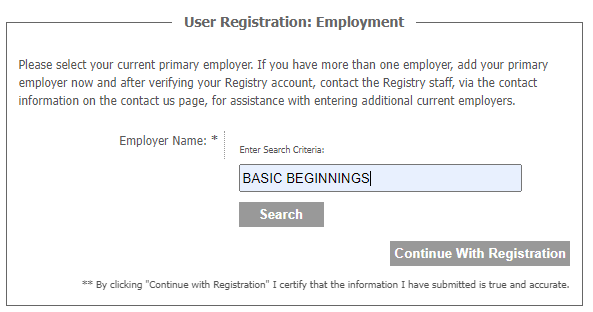
2) Next you will be brought to the “User Registration: Employment” page. THE EMPLOYER NAME MUST BE TYPED EXACTLY AS SHOWN FOR EITHER LOCATION.
For North type in all uppercase: BASIC BEGINNINGS
For South type: Basic Beginnings South
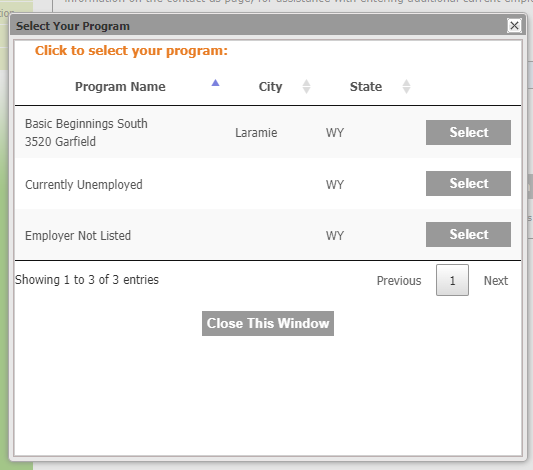
3) Click the search button and then select your center in the popup window.
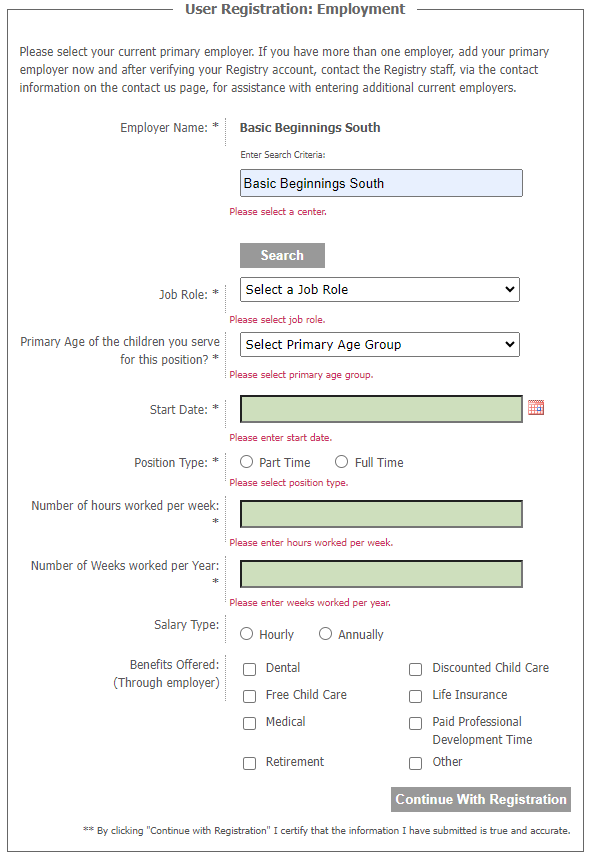
4) After selecting your employer, complete the employment form then click “Continue With Registration”
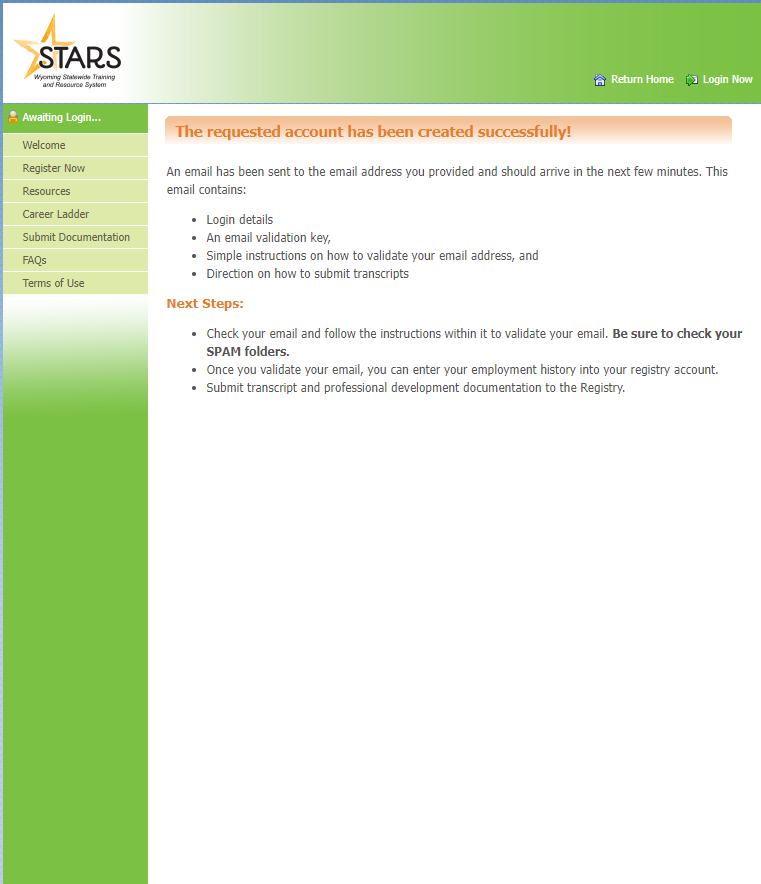
5) Finally an email will be sent to email account you registered with. Follow the validation process detailed in the email and other steps you will be instructed to complete.
Congrats you now have a WYSTARS account!
1) To begin registering for a course, pull up the wyregistry.org website and login into your WYSTARS account.
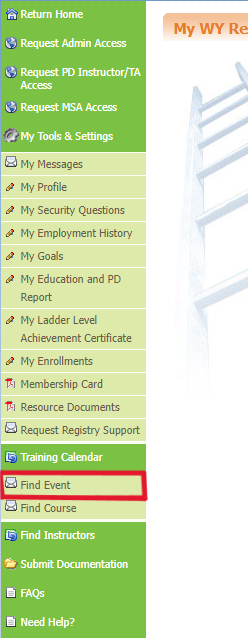
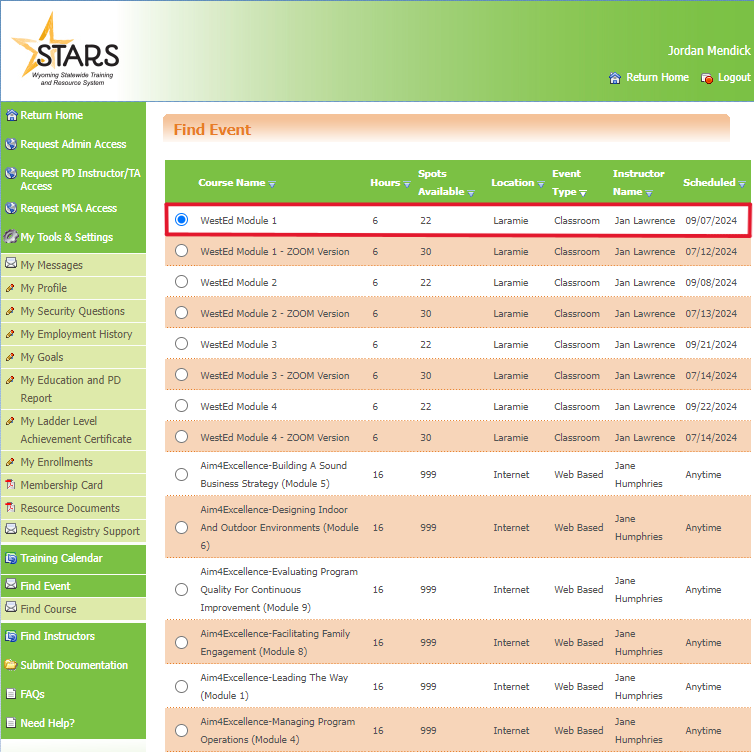
2) To the left of the page, there will be a sidebar. Locate the “Find Event” option near the bottom of the sidebar.
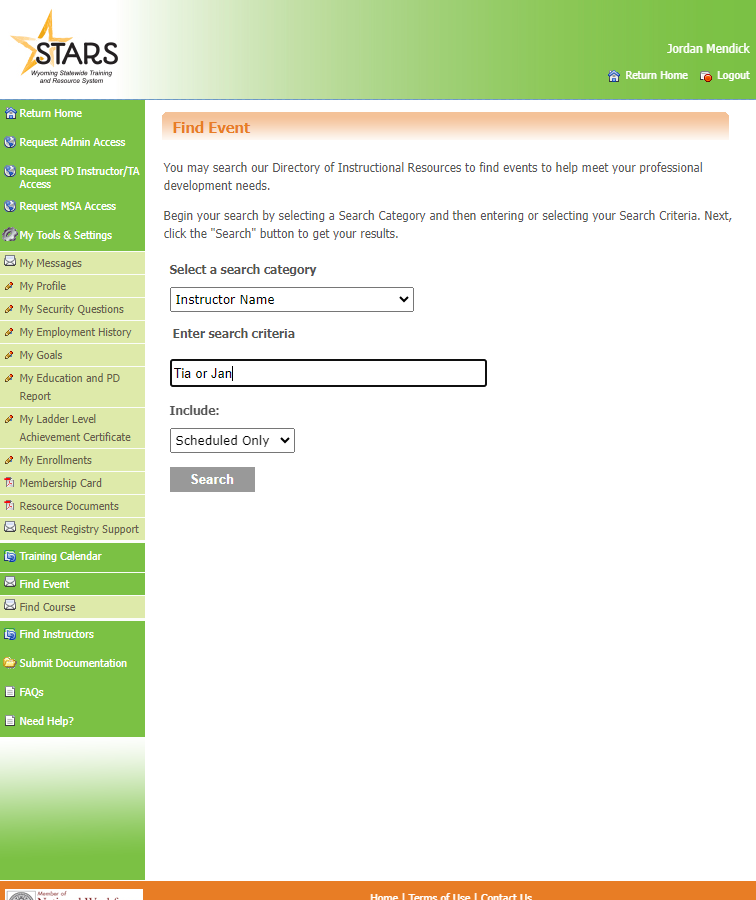
3) After clicking “Find Event” you will be brought to a directory. Under “Select a search category” choose “Instructor Name” from the drop down list. You will then type the instructor name into the “Enter search criteria” text bar. The instructor for our courses will mostly likely be Tia or Jan. Select “Scheduled Only” the click the “Search” button.
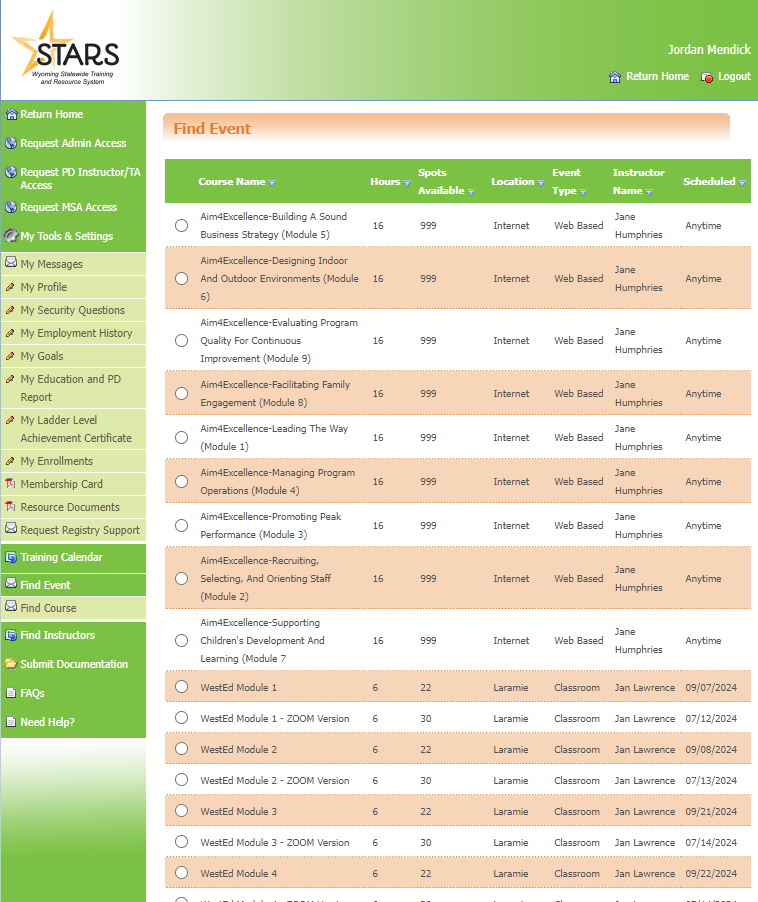
4) The next page will be a list of courses. Navigate to the course you intend to sign up for and click it to select the event.
Please note that you can only select one event at a time and you will need to repeat this process in order to sign up for multiple.
If you do not see the course you are searching, for please ask Tia, Kamie, or Angie or search again closer to the scheduled date.
5) After selecting your course, click the “View Event” button at the bottom of the page.
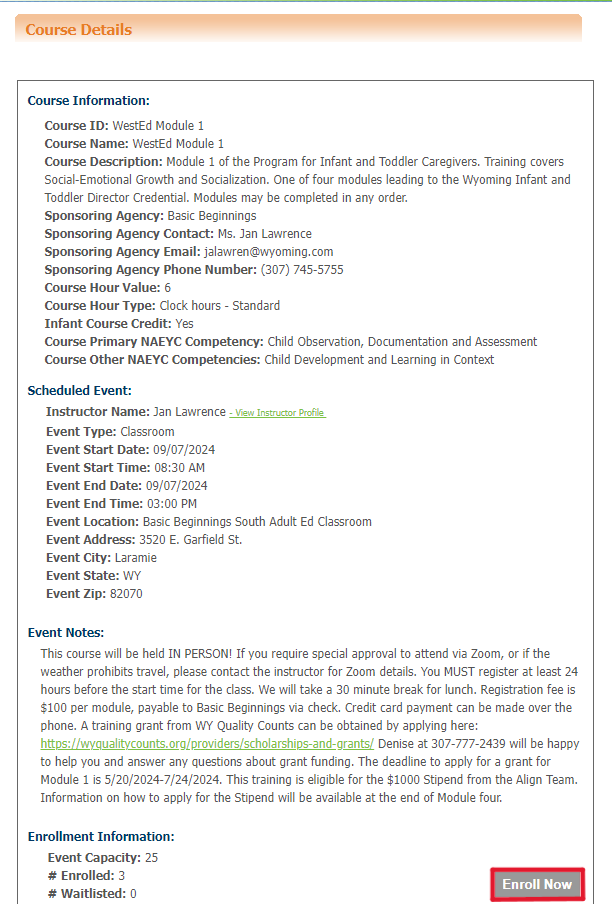
6) After selecting “View Event” you will then be brought to a page of “Course Details”. Please read through these in order to ensure you are registering for the correct event. Click “Enroll Now” to proceed to the final step.
7) Finally check the “Confirm Employment and Contact Information” form. If all of your information is correct, click the “Confirm and Continue Registration” button at the bottom of the page to complete the registration process.
You will receive a email saying you were successful in registering for the course and the course information and details.
Note: If you need to withdraw from the course you can do so via the “My Enrollments” option on the left most sidebar on your home page.